
Installing Claude CLI on Windows (And the Troubleshooting Adventure That Followed)

Hey kids! So I finally got around to installing the Claude CLI, and let me just say... it went as smoothly as you'd expect for a Windows install. Which is to say, not very. But we got there!! Here's exactly what I did, including all the fun little detours, so you don't have to figure it out yourself.
The full Claude Code docs live here: https://code.claude.com/docs/en/overview
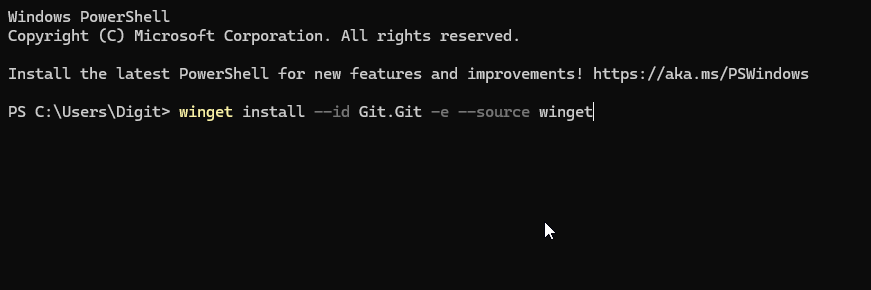
Step 1: Run the PowerShell installer script


If you're using the native Windows setup, validate that you have Git installed first. Then run the installer script. Sounds easy enough, right?

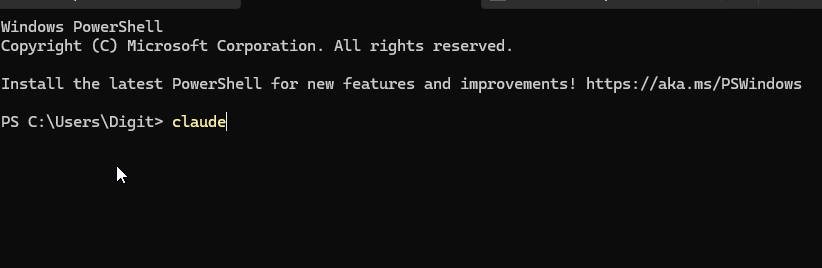
Step 2: Type claude into the terminal

Well. That didn't work for me. I got: "claude : The term 'claude' is not recognized as the name of a cmdlet". So, a-troubleshooting we will go!!
Troubleshooting Step 1: Check your network
The Claude troubleshooting docs are a great first stop: https://code.claude.com/docs/en/troubleshooting#command-not-found-claude-after-installation

The first thing the docs tell you to do is check your network connection. I ran the suggested network check command and got back a 403. Rude.


Troubleshooting Step 2: Checking TLS Protocol
I then saw the TLS policy below this, so I wanted to check if this might be an issue. I ran the TLS protocol set and then ran the install script again.


This time I got an error regarding a missing path and to run the npm command -> npm config get prefix

When I ran the command, I got a permissions error - Windows wouldn't let me execute scripts. Oy-vey!! Microsoft is really making me work for it today!!
The fix is to update your PowerShell execution policy. You can read all the options here: https://learn.microsoft.com/en-us/powershell/module/microsoft.powershell.core/about/about_execution_policies?view=powershell-7.6
I personally set mine to Unrestricted after reading through each option. You do you, but read the options first so you know what you're getting into.


Troubleshooting Step 3: Add the npm path to your System Environment Variables to fix the Path issue
Once the execution policy is sorted, run the npm command again:
npm config get prefix
This time you should get a path back. It'll look something like C:\Users\[your name]\AppData\Roaming\npm
Now open "Edit the system environment variables" from your taskbar search. Click Environment Variables, then double-click Path under System variables. You'll see a long list of existing path entries.


Click New, paste in the path you copied, then save and close everything out.

Step 3 (for real this time): Run the Claude installer again
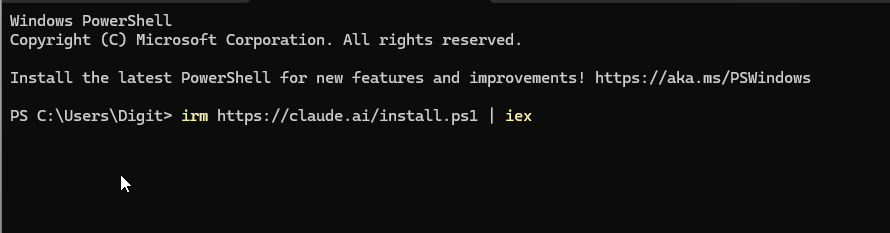
At this point, go ahead and run the Claude installer again. Mine did successfully install, but I got a warning that I was missing a second path value. The installer actually tells you what it is, so just copy that second path, go back into your System Environment Variables, add another New entry for it, and save.
Close your terminal completely. Then reopen it, type claude, and you should get the setup prompt asking you to pick your screen mode (light or dark) and log into your account.
(Sorry I don't have screenshots of my errors - I closed my terminal at this point and forgot to grab screenshots. Won't do that next time!!)
I have Claude installed as an app (twice), browser extension, mobile app, and now CLI too. I think I might be a little obsessed ..........
Until next time, friends!! 💗
Have you tried Claude yet? Drop your experience in the comments below!! 💜
Comments